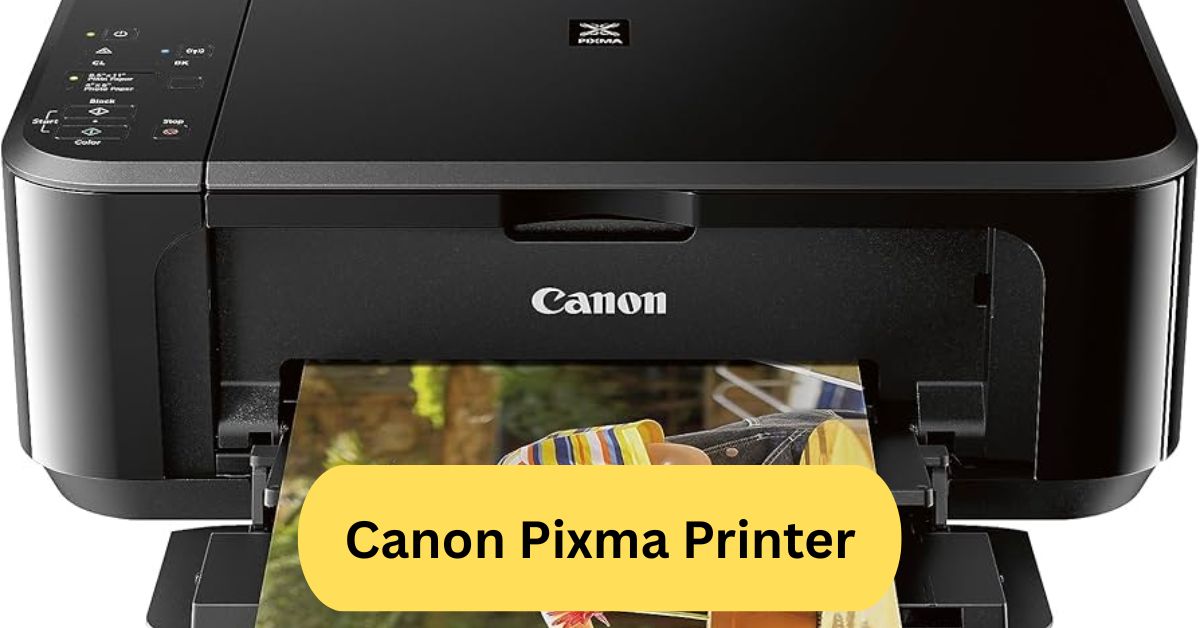
When I first used a Canon PIXMA printer, I was impressed by how clear and colorful the prints looked, especially for photos. Setting it up was simple, and the wireless printing made it really convenient to print directly from my phone without any cables.
The Canon PIXMA printer is known for producing high-quality photo and document prints with sharp details and vibrant colors. It’s easy to use, supports wireless printing, and is ideal for both home and small office use.
In this article, we discuss about “Canon Pixma Printer”
Table of Contents
What is a Canon PIXMA Printer?
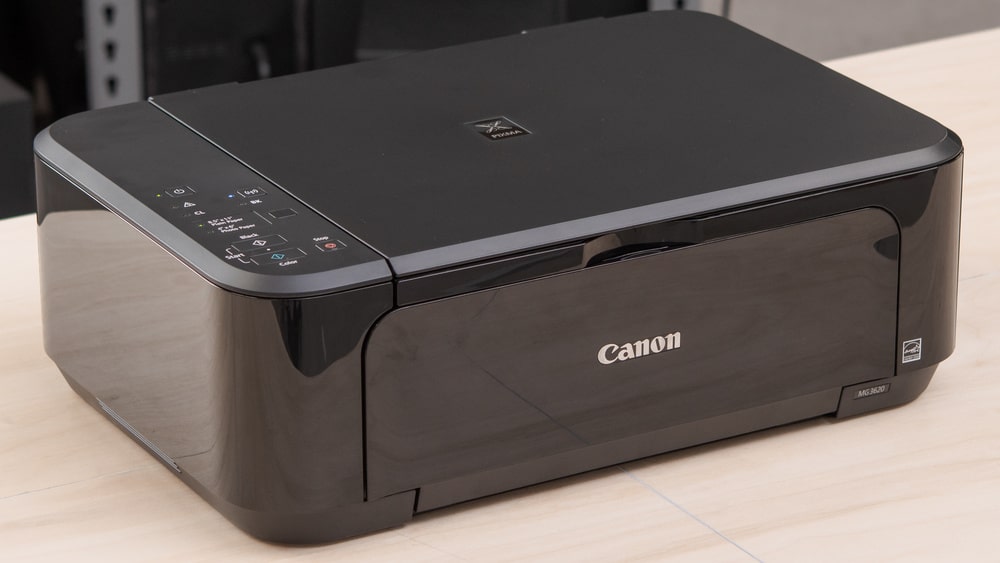
A Canon PIXMA printer is a versatile printing solution designed for both home and office users. It offers exceptional print quality, wireless connectivity, and an easy-to-use interface. Whether you need to print photos, documents, or creative projects, PIXMA delivers sharp and vibrant results every time.
Why PIXMA Stands Out:
Canon’s PIXMA series is all about combining functionality with style. These printers are compact, reliable, and perfect for users who want professional-grade prints without breaking the bank. From ink efficiency to borderless photo printing, PIXMA brings innovation to everyday printing.
History of Canon PIXMA Printers:
The PIXMA line was first introduced by Canon in 2004, focusing on high-quality inkjet technology. Over the years, Canon has evolved the series with improved print speed, wireless features, and eco-friendly designs. Each generation of PIXMA printers reflects Canon’s dedication to image excellence and user satisfaction.
Key Features of Canon PIXMA Printers:
1. Wireless Connectivity:
One of the strongest features of PIXMA printers is seamless wireless printing. You can connect your devices via Wi-Fi, AirPrint, or the Canon PRINT app. No cables, no hassle — just pure convenience.
2. High-Resolution Printing:
PIXMA printers are known for their outstanding print resolution, often reaching up to 4800 x 1200 dpi. Whether printing vivid photos or crisp documents, every detail stands out beautifully.
3. Compact and Stylish Design:
Most PIXMA models are sleek and space-saving, ideal for both home desks and office setups. Despite their size, they pack powerful features suitable for any workload.
Types of Canon PIXMA Printers:
1. PIXMA Home Series:
Perfect for students and casual users, this series focuses on easy operation, compactness, and affordability. Models like PIXMA TS3520 are great for everyday printing tasks.
2. PIXMA Office Series:
Designed for small businesses and heavy use, these models offer duplex printing, faster output, and larger ink capacity — ideal for handling work documents efficiently.
3. PIXMA MegaTank Series:
These are refillable ink tank printers like the PIXMA G6020, built for long-term savings and high-volume printing. They drastically reduce the cost per page.
Canon PIXMA G6020 — A Popular Choice:
The Canon PIXMA G6020 is a standout model in the MegaTank lineup. It features refillable ink tanks that deliver thousands of pages before needing a refill. The print quality is top-notch, and the wireless functions make it extremely versatile.
Key Specs:
- Print speed: Up to 13 ppm (black)
- Print resolution: 4800 x 1200 dpi
- Connectivity: Wi-Fi, Ethernet, and USB
- Ink yield: Up to 6,000 black pages per refill
This model is perfect for families or small offices looking to save on ink without compromising quality.
Canon PIXMA App — Smart Control at Your Fingertips:
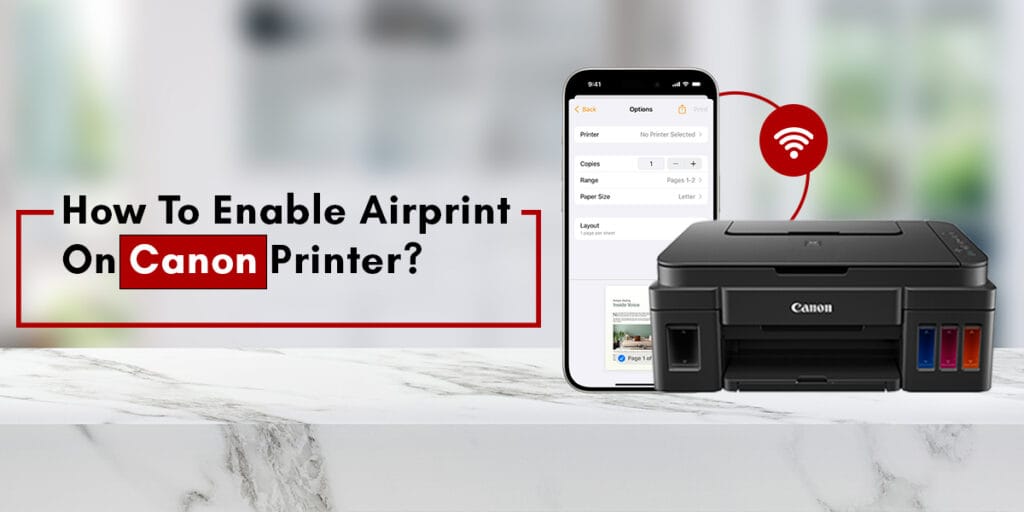
The Canon PRINT Inkjet/SELPHY app allows you to print, scan, and check printer status directly from your smartphone. You can also monitor ink levels and access cloud services like Google Drive and Dropbox.
Setup Tip:
Download the app from Google Play or App Store, connect your printer via Wi-Fi, and start printing instantly — no complex setup required.
Wireless Printing Made Easy:
Connecting your PIXMA printer to Wi-Fi is simple:
- Turn on your printer.
- Press the Wi-Fi button until the light flashes.
- Use the Canon PRINT app to connect it to your home network.
Once done, you can print from anywhere within your network — even directly from your phone’s gallery or documents.
Performance and Print Quality:
Canon PIXMA printers deliver impressive performance whether printing in color or monochrome. The ink system ensures rich tones, deep blacks, and vibrant images. For photographers, PIXMA printers reproduce realistic colors and fine textures, making them ideal for photo printing.
Ink System and Efficiency:
PIXMA printers come with two main ink options:
- Cartridge-based systems for compact models
- Refillable MegaTank systems for heavy users
The MegaTank system can print thousands of pages before refilling, making it an eco-friendly and cost-saving option.
Scanning and Copying Features:
Most PIXMA models are all-in-one devices, allowing you to print, scan, and copy seamlessly. You can scan documents to your computer or smartphone and even use the app for cloud uploads. The built-in copier function makes quick document duplication effortless.
Troubleshooting Common Issues:
1. Printer Not Printing:
Check if your printer is connected properly to Wi-Fi and has enough ink. Restart both your printer and router if the issue persists.
2. Wi-Fi Connection Problems:
Reset your network settings on the printer and reconnect using the Canon PRINT app. Make sure your Wi-Fi signal is stable.
3. Ink Detection Errors:
If the printer doesn’t detect new ink, try reinstalling the ink tanks or cleaning the contacts gently with a dry cloth.
Comparison PIXMA vs Other Brands
Canon PIXMA often outperforms rivals like HP DeskJet or Epson EcoTank when it comes to color accuracy and print sharpness. While Epson might have slightly lower running costs, Canon wins in photo quality and reliability.
Maintenance Tips:
- Clean the printhead regularly using the printer’s maintenance menu.
- Keep your printer firmware updated.
- Always turn off the printer properly to avoid drying out ink nozzles.
Regular care ensures long-lasting performance and consistent print quality.
Best Canon PIXMA Models in 2025:
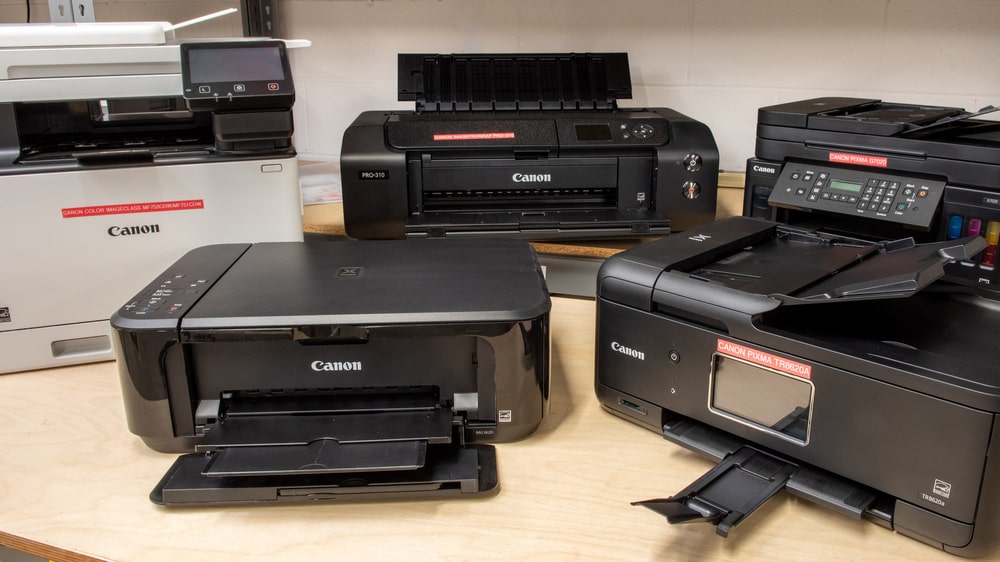
- Canon PIXMA G6020 — Best for high-volume printing
- Canon PIXMA TS8320 — Ideal for photo enthusiasts
- Canon PIXMA TR8620a — Perfect for small offices
Each model offers a balance of speed, quality, and connectivity that suits different user needs.
Canon PIXMA printer setup:
Setting up a Canon PIXMA printer is simple and quick. First, unbox the printer, plug it in, and install the ink cartridges and paper. Then, download and install the Canon printer driver or Canon PRINT Inkjet/SELPHY app. Connect the printer to your Wi-Fi network or use a USB cable for a wired setup. Once connected, you can print wirelessly from your computer, phone, or tablet with ease.
Canon PIXMA printer G6020:
The Canon PIXMA G6020 is an all-in-one wireless MegaTank printer built for high-volume printing. It uses refillable ink tanks that deliver thousands of pages at a very low cost per print. With Wi-Fi and Ethernet support, duplex printing, and a 350-sheet capacity, it’s ideal for home or small office use.
Canon PIXMA printer app:
The Canon PRINT app is a free mobile application from Canon that lets you set up, print, scan, and monitor ink levels on compatible PIXMA and other Canon printers directly from your smartphone or tablet.
It supports cloud printing, wireless network printing, and works with both Android and iOS devices.
Note: Feature availability can vary by printer model and region, so check your specific PIXMA model’s compatibility for full functionality.
Frequently Asked Questions:
1. How do I connect to my Canon PIXMA printer?
You can connect your Canon PIXMA via Wi-Fi by pressing the Wi-Fi button on the printer until the light flashes, then selecting your network and entering the password. You can also connect through USB or the Canon PRINT Inkjet/SELPHY app for mobile devices.
2. Is the Canon PIXMA printer any good?
Yes, Canon PIXMA printers are well-known for their excellent photo printing quality, wireless connectivity, and easy setup. They’re reliable for home and small office use, offering great value for their price.
3. Why won’t my Canon PIXMA print?
Your printer may not print due to low ink, paper jams, or connectivity issues. Check the printer’s status on your device, make sure the drivers are updated, and restart both the printer and computer if needed.
4. How do I reset the Wi-Fi on my Canon PIXMA printer?
Press and hold the Stop/Reset or Wi-Fi button until the alarm light flashes, then release it. This resets the network settings. You can then reconnect the printer to a new Wi-Fi network using the setup menu or Canon app.
5. How do I connect my Canon PIXMA to my phone?
Download the Canon PRINT Inkjet/SELPHY app on your phone, ensure your printer and phone are on the same Wi-Fi network, and follow the app’s prompts to connect. You can then print photos and documents directly from your phone.
6. What does the blinking light mean on my Canon?
A blinking light usually indicates an error, such as paper jam, low ink, or a connection problem. Check your printer’s screen or computer for an error message that explains the issue in detail.
7. What is the disadvantage of a Canon printer?
One main disadvantage is that Canon ink cartridges can be expensive. Some users also find that the printers consume a lot of ink during cleaning cycles, increasing overall maintenance costs.
8. What is the No. 1 printer for home use?
The Canon PIXMA series is among the top choices for home use due to its affordable price, high-quality photo output, and wireless features. Other strong options include HP Envy and Epson EcoTank models.
9. Does the Canon PIXMA printer have WiFi?
Yes, most Canon PIXMA models come with built-in Wi-Fi, allowing easy wireless printing from computers, smartphones, and tablets without needing any cables.
10. What is the average lifespan of a Canon printer?
A Canon printer typically lasts 3 to 5 years, depending on usage and maintenance. Regular cleaning and using genuine Canon ink can help extend its life and maintain print quality.
Conclusion:
The Canon PIXMA printer series stands out as a perfect blend of performance, style, and reliability. Whether you’re printing family photos, school projects, or business documents, it consistently delivers sharp, vibrant results. With its easy wireless connectivity, user-friendly app, and cost-effective MegaTank options, PIXMA caters to every type of user. Regular maintenance and genuine ink use ensure long-lasting performance and quality prints. Overall, Canon PIXMA remains one of the best choices for anyone seeking efficiency, affordability, and professional-grade printing at home or in the office.
About the Author