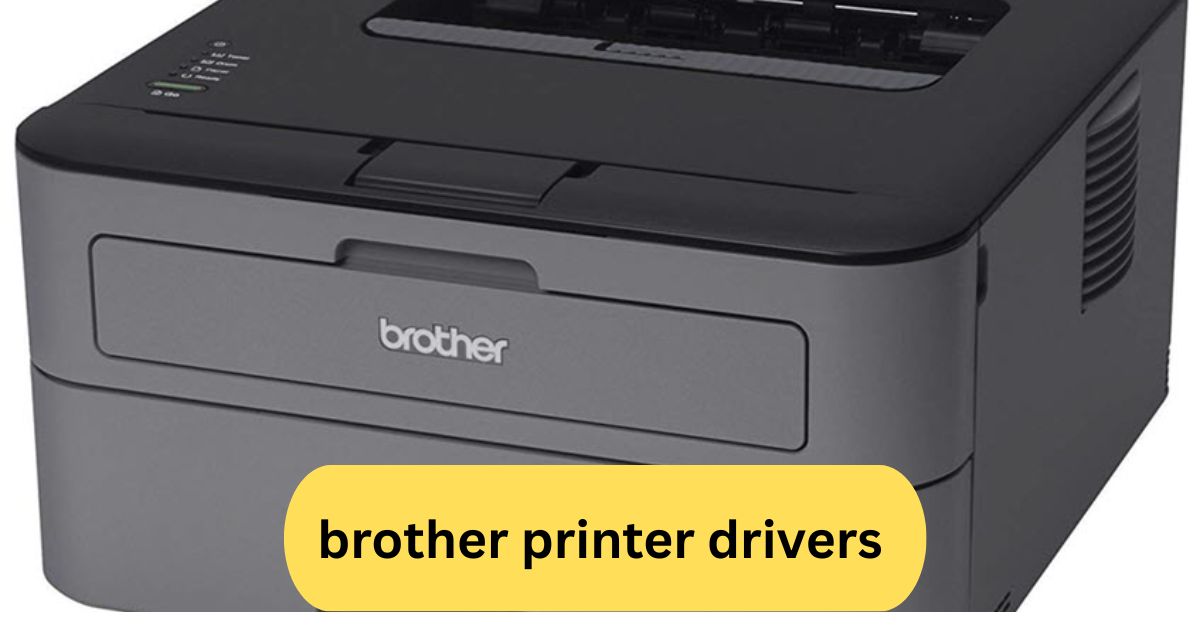
When I installed the Brother printer drivers, the setup was quick and hassle-free. I downloaded the drivers from Brother’s official website, and my printer connected instantly. After that, printing and scanning worked smoothly without any errors or delays.
Brother printer drivers are essential software that allow your computer or mobile device to communicate with your Brother printer. You can download them from the official Brother website to ensure smooth printing, scanning, and device compatibility.
In this article we discuss about “Brother Printer Drivers”
Table of Contents
Introduction:
Ever hit the print button only to get an error message instead of a page? Chances are, your printer driver is the culprit. Brother printer drivers are essential software that allow your computer and printer to communicate effectively. Without them, your printer can’t understand the print commands you send.
In this guide, we’ll break down everything you need to know about Brother printer drivers — from downloading and installing them to troubleshooting issues like “driver unavailable” errors.
Understanding Brother Printer Drivers:
Think of printer drivers as translators. They convert your computer’s digital information into a format your printer understands. Brother printer drivers ensure compatibility between your operating system (Windows or macOS) and your Brother printer model.
Without the correct driver, even the best printer won’t perform correctly. You might face printing delays, missing features, or complete connection failures.
Types of Brother Printer Drivers:
1. Full Driver & Software Package:
This is the most comprehensive option. It includes all necessary drivers, utilities, and applications for your printer. Perfect for first-time installations.
2. Printer Driver Only:
If you just need the basic printing function, this lightweight version is ideal. It doesn’t include additional software like scanner utilities or Brother iPrint&Scan.
3. Wireless and Mobile Printing Drivers:
For Wi-Fi and mobile-friendly models, these drivers support features like AirPrint (for iPhone/iPad) and Brother Mobile Connect (for Android).
Importance of Keeping Drivers Updated:
Regular updates ensure your printer performs at its best. Brother frequently releases driver updates to fix bugs, improve compatibility with new operating systems, and enhance print quality.
Updated drivers also prevent issues like print job errors or connectivity problems — saving you time and frustration in the long run.
How to Download Brother Printer Drivers:
1. From the Official Brother Support Website
Always download your drivers directly from Brother’s official website. This guarantees authenticity and prevents malware risks.
Step-by-step guide:
- Go to support.brother.com.
- Enter your printer model (e.g., Brother MFC-L2710DW).
- Select your operating system (Windows, macOS, or Linux).
- Click on “Full Driver & Software Package.”
- Download and follow the on-screen instructions.
2. For Windows Users
After downloading, locate the .exe file in your Downloads folder. Double-click it and follow the installation wizard. Once done, restart your computer for changes to take effect.
3. For Mac Users:
For macOS, download the .dmg file. Open it and drag the Brother printer installer into the Applications folder. Follow the guided installation steps.
Installing Brother Printer Drivers:
1. Automatic Installation:
Most modern Brother printers automatically install drivers once connected via USB or Wi-Fi. Your computer will detect the printer and fetch the right driver from the Brother database or your OS.
If automatic installation fails, you can manually install the driver by selecting Add Printer under your system settings and browsing for the downloaded driver file.
Installing via USB Connection:
- Connect the printer to your computer using a USB cable.
- Turn on your printer.
- The installation wizard should appear — follow the prompts.
- Once installed, print a test page to confirm it works.
Installing via Wireless Connection:
- Ensure your printer and computer are on the same Wi-Fi network.
- On your printer’s display, select Network > WLAN > Setup Wizard.
- Choose your network and enter your password.
- On your computer, install the driver and select “Wireless Connection.”
Troubleshooting Driver Installation Issues:
1. Common Driver Errors:
- “Driver unavailable”
- “Printer not found”
- “Installation failed.”
These errors usually occur due to outdated drivers, missing system updates, or connectivity problems.
Fixing “Driver Unavailable” Error:
- Uninstall the current driver from Control Panel > Devices and Printers.
- Restart your computer.
- Download the latest driver from Brother’s official site.
- Reinstall it and restart.
Resetting Your Brother Printer Driver:
If your printer still doesn’t respond, try resetting it:
- Go to Devices and Printers in your system settings.
- Right-click your Brother printer and select Remove Device.
- Reinstall the driver as described earlier.
Brother Printer Driver Updates:
1. Manual Updates:
You can manually check for updates by visiting Brother’s support website and entering your printer model. Updated drivers are listed under the Downloads section.
2. Using Brother’s Update Tool:
Brother also offers an AutoUpdate Utility that automatically checks for driver and software updates — ensuring your system stays current.
Compatible Operating Systems:
1. Windows:
- Windows 11 / 10 / 8.1 / 7 (32-bit & 64-bit)
2. macOS:
- macOS Monterey, Ventura, and later
3. Mobile:
- iOS and Android devices using Brother Mobile Connect or AirPrint.
Tips for Optimizing Printer Performance:
- Regularly clean your printer’s driver cache.
- Keep firmware and software up to date.
- Always download drivers from Brother’s official website.
- Avoid using third-party or generic drivers, as they may cause compatibility issues.
Common Problems and Solutions:
| Problem | Solution |
| Printer not detected | Check USB/Wi-Fi connection, reinstall driver |
| Poor print quality | Update drivers, clean print heads |
| Printer offline | Restart the printer, reconfigure the network settings |
| Slow printing | Clear print queue, update drivers |
Brother printer software download:
You can download Brother printer software directly from the official Brother Support website by entering your printer model. The software package includes drivers, utilities, and setup tools for printing and scanning. It ensures your printer works smoothly with your computer or mobile device.
Brother printer drivers for Windows 11:
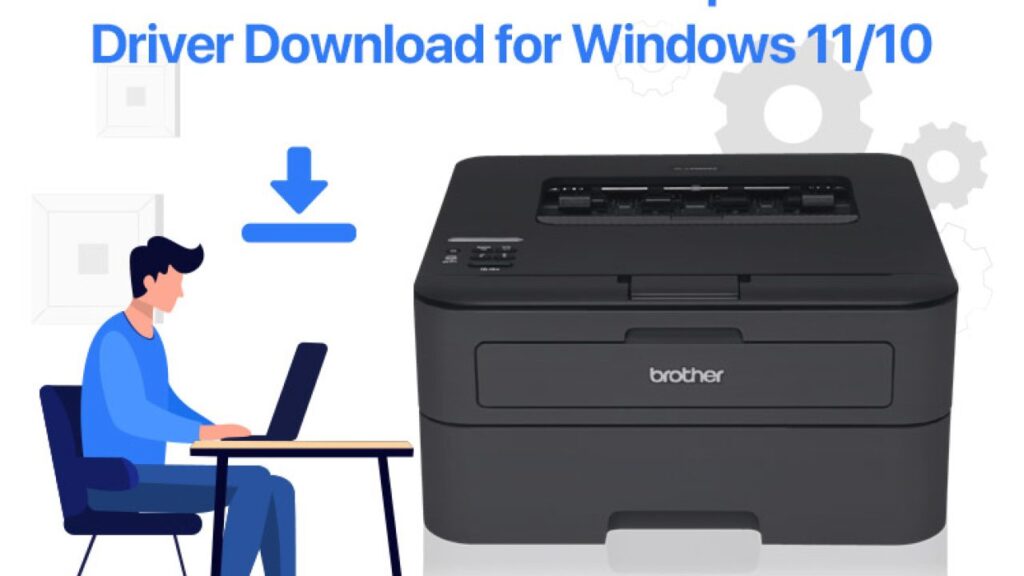
Brother provides compatible printer drivers specifically designed for Windows 11. You can download them from the official Brother Support website by entering your printer model. Once installed, the driver ensures your printer functions smoothly for printing, scanning, and wireless connectivity on Windows 11 systems.
Brother printer drivers MFC-L2710DW:
The Brother MFC-L2710DW printer drivers enable smooth printing, scanning, and copying functions on your device. You can download them from the official Brother Support website by selecting your operating system. Installing the correct drivers ensures optimal performance, Wi-Fi connectivity, and compatibility with both Windows and macOS systems.
Frequently Asked Questions:
1. How do I get my Brother printer driver?
You can download the Brother printer driver from the official Brother website by entering your printer model. Choose your operating system, download the driver package, and follow the installation instructions provided.
2. How do I get my computer to recognize my Brother printer?
Make sure your printer is powered on and connected via USB or Wi-Fi. Then, go to your computer’s settings, select “Add a printer,” and choose your Brother printer from the list. Installing the correct driver usually fixes detection issues.
3. Do I need to install a driver for a Brother printer?
Yes, installing the proper driver is essential for your computer to communicate with the Brother printer. Without it, certain functions like scanning or duplex printing may not work correctly.
4. How do I reset my Brother printer driver?
To reset your Brother printer driver, uninstall the existing driver from your computer’s settings, restart your system, and reinstall the latest version from Brother’s website. This helps fix bugs and connectivity issues.
5. How to find and install printer drivers?
Visit the printer manufacturer’s website, enter your printer model, and download the correct driver for your operating system. Then, follow the on-screen installation steps to complete the process.
6. Do Brother printers need updates?
Yes, Brother printers occasionally require firmware or driver updates to improve performance and fix issues. You can check for updates using the Brother Support tool or through the printer’s settings menu.
7. Why is my computer not detecting my printer?
This can happen due to outdated drivers, connection issues, or disabled printer settings. Try restarting both devices, checking the cable or Wi-Fi connection, and reinstalling the driver to fix the problem.
8. Why is my Brother printer suddenly not connecting to Wi-Fi?
Your printer may lose Wi-Fi connection due to router changes, weak signals, or outdated firmware. Reconnect it through the wireless setup menu and ensure your Wi-Fi password and network name are correct.
9. Why is my computer not communicating with my wireless printer?
This issue often arises from network conflicts or outdated drivers. Restart your router, reconnect both devices to the same Wi-Fi network, and reinstall the printer driver to reestablish communication.
10. How do I restore my printer driver?
You can restore your printer driver by reinstalling it from the Brother website or using your system’s “Device Manager” to roll back or update the driver. This helps fix corrupted or missing driver files.
Conclusion:
Brother printer drivers are the backbone of smooth and reliable printing performance. Installing the correct and updated drivers ensures that your printer communicates seamlessly with your computer, offering top-quality prints and hassle-free connectivity. Whether you’re using Windows, macOS, or mobile devices, Brother makes downloading and updating drivers simple and secure. Regular updates can prevent errors, improve speed, and enhance overall efficiency. In short, keeping your Brother printer drivers up to date guarantees the best performance and longevity for your printer.
About the Author