When I restart my computer, I usually do it after it starts running slowly or certain apps freeze. Once it restarts, everything feels smoother and faster again. It’s a quick way to refresh the system and fix small glitches without doing anything complicated.
To restart your computer, click the Start menu → Power → Restart. This process safely closes all apps and reboots your system to fix performance issues or apply updates. You can also press Ctrl + Alt + Delete, then select Restart from the power options for a quick reboot.
In this article we discuss about “How to Restart the Computer”
Table of Contents
Introduction:
Have you ever noticed your computer acting sluggish or freezing for no reason? Sometimes, the best fix is simply restarting it. Restarting your computer clears temporary files, refreshes system memory, and allows pending updates to install. It’s like giving your computer a fresh breath of air after a long day’s work.
Why Restarting a Computer Matters:
1. Fixing System Errors:
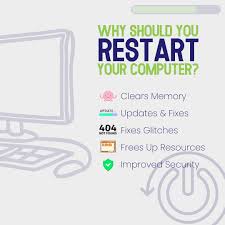
A restart helps fix common software glitches. When your PC is on for too long, background processes can pile up, causing slowdowns or errors. Restarting resets these processes.
2. Improving Performance:
When you reboot, unused data is wiped from memory. This helps speed up your system, especially if it’s been lagging after hours of use.
3. Completing Updates:
Most system and security updates require a restart to apply changes. Skipping this can cause software conflicts or leave your system vulnerable.
4. Freeing Up Memory:
Temporary files and cache build up during usage. Restarting clears this data, giving your computer more breathing space.
Different Ways to Restart a Computer
There’s more than one way to restart your system. Depending on the situation—normal operation, freezing, or hardware issues—you can use different methods.
1. How to Restart a Computer Manually:
The simplest way is through the Start Menu:
- Click the Start button.
- Select Power.
- Click Restart.
If your computer is unresponsive:
- Press Ctrl + Alt + Delete.
- Choose the Power icon in the bottom-right corner.
- Select Restart.
2. How to Restart Using Keyboard Shortcuts:
Keyboard shortcuts are quick and efficient, especially when your mouse doesn’t respond.
For Windows:
Press Alt + F4, then choose Restart from the drop-down menu and hit Enter.
For macOS:
Press Control + Command + Eject (or Power) to restart your Mac instantly.
3. How to Perform a Full Restart:
A full restart goes beyond a normal reboot—it shuts down all processes and restarts the system from scratch.
- Go to Settings → System → Power & Sleep → Additional Power Settings.
- Choose Shutdown, wait 10 seconds, then power it back on.
Use this method after major software installations or driver updates for best results.
4. How to Restart When the Computer is Stuck:
When your system freezes completely, normal restart options won’t work. Here’s what to do:
- Press and hold the Power button for 5–10 seconds.
- Wait for the system to shut down completely.
- Press the Power button again to turn it back on.
Using Task Manager
- Press Ctrl + Shift + Esc to open Task Manager.
- End any “Not Responding” tasks.
- Once stable, perform a regular restart.
Tip: Always save your work before restarting if possible to prevent data loss.
What is the Restart Button on a PC?
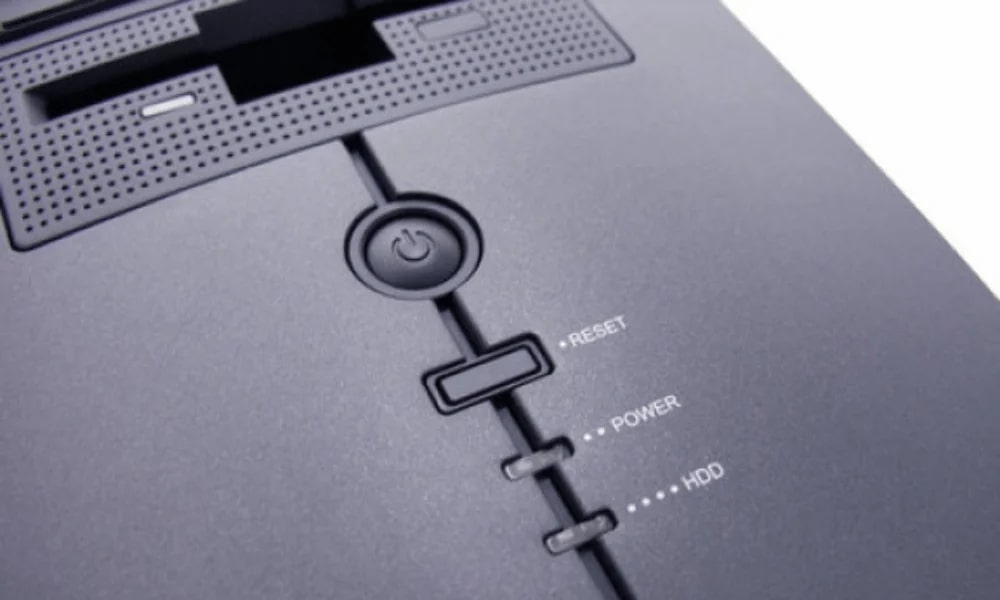
Most desktop PCs have a small Restart button near the Power switch. Pressing it forces your system to reboot instantly—useful when the screen freezes and no keyboard shortcuts work. However, use this option sparingly as it can interrupt active processes.
How to Restart a PC with No Restart Button:
Many modern laptops and compact PCs don’t include a restart button. In that case:
- Use the Start menu restart option.
- Or type shutdown /r /f /t 0 in Command Prompt to restart immediately.
What is a Hard Restart (Hard Reboot)?
A hard restart means cutting power to your computer and forcing it to restart manually.
It’s often used when your system completely locks up.
How to Perform It:
- Hold the Power button until the device turns off.
- Wait 10 seconds.
- Turn it back on.
Warning: Hard reboots can cause unsaved data loss, so only use this as a last resort.
How to Restart Without the Power Button:
If your Power button is broken, don’t worry—there are other ways:
- Plug in your charger (for laptops) — it may trigger a power-on signal.
- Use the Wake-on-LAN feature from BIOS.
- Connect an external keyboard and use Alt + F4 → Restart.
Restarting Laptops vs. Desktops:
While the process is nearly identical, laptops rely on battery power. Always ensure your laptop has enough charge before restarting. For desktops, check that your power supply is stable and cables are securely connected.
Common Restart Problems and Fixes:
1. Computer Won’t Restart:
- Check for pending updates or system errors.
- Try holding the Power button for 10 seconds.
- If that fails, unplug your computer for 30 seconds before retrying.
2. Endless Restart Loop:
This usually means a system or driver issue. Boot in Safe Mode and uninstall recently added software.
3. Restart Takes Too Long:
Too many startup programs can slow down rebooting. Disable unnecessary apps from Task Manager → Startup.
Tips for Smooth Restarting:
- Save all your work before restarting.
- Close all apps to avoid conflicts.
- Schedule automatic restarts during off-hours to keep your system fresh.
Think of it like giving your computer a nightly nap—it wakes up faster and performs better.
How to restart the computer with the keyboard:
To restart your computer using the keyboard, press Alt + F4 while on the desktop, then select Restart from the dropdown menu and press Enter. You can also press Ctrl + Alt + Delete, click the Power icon in the bottom-right corner, and choose Restart for a quick reboot.
How to restart a computer completely:
To restart your computer completely, click the Start menu → Power → Restart. This will close all running programs and reboot your system. For a deeper refresh, choose Shut down, wait a few seconds, and then turn your computer back on manually.
How to restart a PC with the power button:
To restart your PC using the power button, press and hold it for about 5–10 seconds until the computer turns off completely. Wait a few seconds, then press the power button again to turn it back on. This method is useful when your system is frozen or unresponsive.
Frequently Asked Questions:
1. How do I manually restart my computer?
You can manually restart your computer by clicking the Start menu, selecting the Power icon, and choosing Restart. This safely closes all programs and reboots your system.
2. How can I restart my computer using the keyboard?
Press Alt + F4 on the desktop, then choose Restart from the dropdown menu. Alternatively, press Ctrl + Alt + Delete, click the Power icon, and select Restart.
3. How to make a full restart?
A full restart means completely shutting down and rebooting the system. Click Start → Power → Shut down, wait a few seconds, and then turn it back on to refresh the system.
4. How to restart a PC when it’s stuck?
If your PC is frozen, press and hold the Power button for about 5–10 seconds until it turns off, then press it again to restart. This is called a force restart.
5. What is the restart button on a PC?
Some desktop PCs have a small Restart or Reset button on the case. Pressing it quickly reboots the computer without turning off the power completely.
6. How to restart a PC with no restart button?
If your PC doesn’t have a restart button, you can use Start → Power → Restart or press and hold the Power button to turn it off and back on manually.
7. What is a hard restart on a PC?
A hard restart means forcing your computer to shut down by holding the Power button until it turns off. It’s used when the system is unresponsive.
8. How to restart without the power button on the PC?
If your power button doesn’t work, restart through software by pressing Alt + F4 → Restart, or use the Ctrl + Alt + Delete method and select Restart.
9. How do you perform a restart or reboot?
A restart or reboot is done by selecting Restart from your computer’s power options. This process shuts down the operating system and starts it again fresh.
10. Is it OK to force restart my PC?
Yes, but only when your PC is completely frozen. Frequent force restarts can cause data loss or system errors, so use them as a last resort.
Conclusion:
Restarting your computer is one of the simplest yet most effective ways to solve common issues like lagging, freezing, or slow performance. It clears temporary data, refreshes memory, and allows important updates to take effect. Whether you use the Start menu, keyboard shortcuts, or a manual reboot, restarting helps keep your system healthy and efficient. Make it a habit to restart regularly for smoother performance and longer system life. Think of it as giving your computer a fresh start whenever it needs one.
About the Author