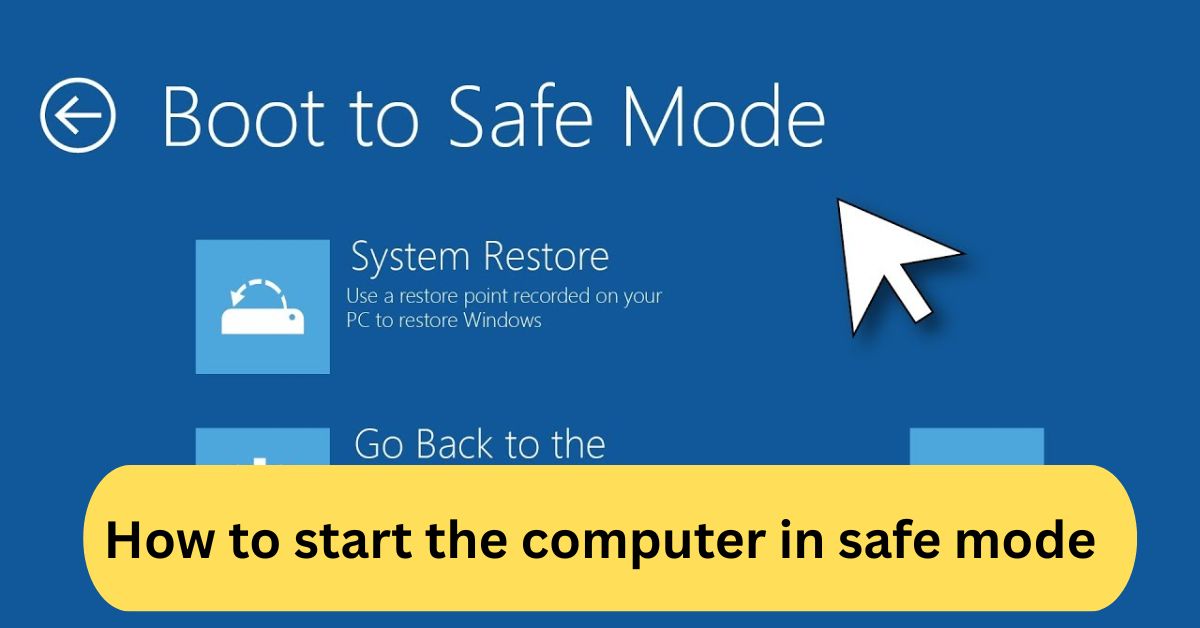
When I started my computer in Safe Mode, it really helped me fix problems that a normal startup couldn’t. The system ran with only basic programs, making it easier to find and remove a troublesome app that was causing crashes. It’s a simple but powerful way to troubleshoot issues safely.
To start your computer in Safe Mode, restart it and press F8 (or Shift + F8 on some systems) before Windows loads. Then select Safe Mode from the Advanced Boot Options menu. On Windows 10/11, go to Settings > Recovery > Advanced startup > Restart now, then choose Troubleshoot > Advanced options > Startup Settings > Safe Mode.
In this article we discuss about “How to Start the Computer in Safe Mode”
Table of Contents
Introduction:
Ever had your computer freeze, crash, or act up right when you need it the most? That’s where Safe Mode comes to the rescue. Safe Mode is like your computer’s emergency room—it starts your system with only the most essential files and drivers, allowing you to troubleshoot problems without interference from third-party software.
In this article, we’ll explore how to start the computer in Safe Mode, why it’s so useful, and the exact steps for different situations—whether your screen is black, Windows won’t start, or you just need to fix a stubborn error.
What Is Safe Mode?
Safe Mode is a diagnostic startup mode in Windows that runs your computer with only the necessary system programs and services. It disables extra applications, drivers, and startup processes that could be causing system instability.
Think of it as your computer’s “clean boot”—a minimal environment where you can find out what’s really wrong.
Why You Might Need Safe Mode:

You may need to boot your computer into Safe Mode if:
- Your system keeps crashing or restarting unexpectedly.
- A driver or software installation is causing issues.
- You suspect a virus or malware infection.
- Your screen is frozen or black after startup.
Safe Mode allows you to troubleshoot safely and make changes without interference from unnecessary apps or background processes.
Types of Safe Mode:
Windows offers three main versions of Safe Mode:
1. Safe Mode:
Start Windows with only basic drivers and files—no internet connection. Best for diagnosing startup issues.
2. Safe Mode with Networking:
Same as standard Safe Mode but includes drivers for network connections, allowing you to access the internet or internal networks.
3. Safe Mode with Command Prompt:
Loads the system with a command-line interface instead of the usual graphical desktop—perfect for advanced troubleshooting.
How to Start a Computer in Safe Mode (Windows 10 & 11):
1. Using Settings:
- Click Start > Settings > System > Recovery.
- Under Advanced startup, select Restart now.
- After your PC restarts, go to Troubleshoot > Advanced options > Startup Settings > Restart.
- When prompted, press 4 or F4 to start Safe Mode, 5 or F5 for Safe Mode with Networking.
2. Using Shift + Restart:
- Hold down the Shift key while clicking Restart from the Start menu.
- Your system will reboot to the Advanced Startup Options screen.
- Follow the same steps as above to enter Safe Mode.
Starting Safe Mode from Startup (Boot):
If your computer won’t boot normally:
- Power off your computer completely.
- Turn it back on and press F8 or Shift + F8 repeatedly during startup.
- Select Safe Mode from the Advanced Boot Options menu.
Note: On newer Windows systems, F8 may not work because startup is too fast. Use the Settings or Recovery method instead.
How to Start a Computer in Safe Mode from BIOS:
Although you can’t directly boot into Safe Mode from BIOS, you can use BIOS to access the boot sequence and reach Safe Mode indirectly.
Steps:
- Restart your PC and press the BIOS key (usually F2, F10, Del, or Esc).
- Go to the Boot tab and ensure your primary drive is selected.
- Exit BIOS and restart.
- As Windows loads, press F8 or use the Shift + Restart method to reach Safe Mode.
For different brands:
- HP: Tap Esc or F11 at startup.
- Dell: Tap F8 or F12.
- Lenovo: Use F1 or F8.
- ASUS: Try F8 or Del.
How to Start a Computer in Safe Mode from Black Screen:
If your screen is blank or you can’t log in:
- Power off and on three times to trigger Windows Recovery Environment (WinRE).
- Select Advanced Options > Troubleshoot > Startup Settings.
- Restart and choose Safe Mode.
Alternatively, you can use a Windows installation USB to boot and access repair tools.
How to Start Safe Mode Using Command Prompt:

If Windows still opens normally:
- Press Windows + R, type cmd, and press Enter.
Run the command:
bcdedit /set {current} safeboot minimal
- Restart your PC—it will boot in Safe Mode.
To return to normal mode, type:
bcdedit /deletevalue {current} safeboot.
How to Force Your Computer to Start in Safe Mode:
- Press Windows + R, type msconfig, and hit Enter.
- In the Boot tab, check Safe boot and choose Minimal.
- Apply and restart.
- To exit later, uncheck the Safe boot option.
Troubleshooting in Safe Mode:
Once you’re inside Safe Mode, you can:
- Uninstall faulty software or drivers.
- Run antivirus scans to remove malware.
- Use System Restore to revert to a previous stable state.
- Check Device Manager for driver conflicts.
Safe Mode gives you full control to fix issues that would otherwise freeze your system.
Exiting Safe Mode:
To exit, simply restart your computer.
If it still boots into Safe Mode, open MSConfig, uncheck Safe boot, and restart again.
Safe Mode on macOS:
- Restart your Mac and hold down Shift until the login screen appears.
- Log in—your Mac is now in Safe Mode.
- Restart normally to exit.
Mac Safe Mode checks startup disks and loads only essential extensions—similar to Windows Safe Mode.
Safe Mode on Android Devices:
- Press and hold your phone’s Power button.
- Tap and hold Power off until Safe Mode appears.
- Tap OK to restart in Safe Mode.
This disables third-party apps, helping you identify malfunctioning ones that cause performance issues.
How to start the computer in safe mode in Windows 11:
To start Windows 11 in Safe Mode, go to Settings > System > Recovery, then click Restart now under Advanced startup. After your PC restarts, choose Troubleshoot > Advanced options > Startup Settings > Restart, then select 4 or F4 for Safe Mode. You can also hold Shift while selecting Restart from the Start menu for quick access. This mode loads only essential drivers, helping you fix system or software issues safely.
How to start the computer in safe mode Mac:

To start a Mac in Safe Mode, first shut it down completely. Then press the power button and immediately hold the Shift key until you see the login window. Safe Mode runs only essential system files and checks your startup disk for issues. It’s useful for troubleshooting problems like crashes, slow performance, or software conflicts.
How to start the computer in Safe Mode from the BIOS:
To start your computer in Safe Mode from BIOS, restart your PC and press the BIOS key (usually F2, F10, DEL, or ESC) during startup. In the BIOS menu, set your system to boot from the Windows drive, then exit and press F8 or use Advanced Startup Options after boot. Once in the recovery menu, go to Troubleshoot > Advanced options > Startup Settings, and select Safe Mode to start Windows safely.
Frequently Asked Questions:
1. How do I force my computer to start in Safe Mode?
You can force Safe Mode by holding the Shift key and clicking Restart from the Power menu. Then go to Troubleshoot > Advanced options > Startup Settings, and select Safe Mode when the computer restarts.
2. Do you press F5 or F8 for Safe Mode?
Usually, pressing F8 before Windows loads opens the Advanced Boot Options menu, where you can choose Safe Mode. On newer systems, you may need to press F5 to enable Safe Mode with Networking.
3. How to boot in Safe Mode when the screen is black?
If your screen is black, restart your PC and interrupt the boot process three times to trigger Automatic Repair, then go to Advanced options > Startup Settings > Safe Mode.
4. What keys boot into Safe Mode?
Common keys include F8, Shift + F8, or F5, depending on your computer model and Windows version.
5. Will Safe Mode fix my PC?
Safe Mode itself doesn’t fix problems, but helps you identify and remove the causes of system errors, malware, or driver conflicts safely.
6. Why is F8 not booting into Safe Mode?
In newer versions of Windows, the F8 shortcut is disabled by default to speed up boot time. You can re-enable it using Command Prompt or access Safe Mode from recovery options.
7. How to boot into Safe Mode with the power button?
Press and hold the power button to shut down your PC while it’s starting, and repeat this three times to open Automatic Repair, then navigate to Startup Settings > Safe Mode.
8. How to boot into Safe Mode in Windows 10 without login?
From the login screen, hold Shift, click Power > Restart, then select Troubleshoot > Advanced options > Startup Settings > Safe Mode.
9. What does pressing F8 on startup do?
Pressing F8 before Windows loads opens the Advanced Boot Options menu, allowing you to choose modes like Safe Mode, Safe Mode with Networking, or Command Prompt.
10. Is Safe Mode hard to use?
Not at all—Safe Mode is simple. It runs Windows with only essential programs and drivers, making it easy to troubleshoot and fix problems without interference.
Conclusion:
Starting your computer in Safe Mode is a powerful and straightforward way to troubleshoot system issues. It allows you to run Windows or macOS with only essential drivers and programs, making it easier to identify and fix software conflicts, malware, or faulty drivers. Whether your screen is black, Windows won’t start, or you need to remove a troublesome app, Safe Mode provides a safe environment to work in. With multiple methods available—through Settings, BIOS, Command Prompt, or even power-button tricks—you can always access this diagnostic mode. Regular knowledge of Safe Mode ensures you can tackle unexpected system problems quickly and confidently.
About the Author