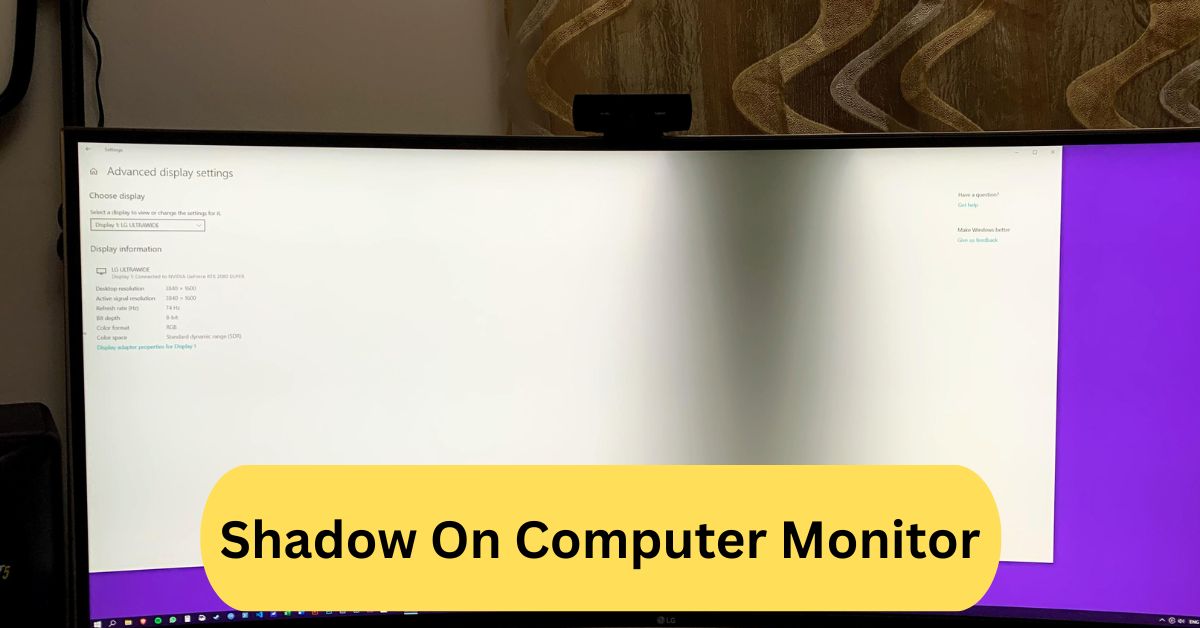
When I noticed a shadow on my computer monitor, it looked like a faint dark area that wouldn’t go away even after restarting. I fixed it by unplugging the HDMI cable, cleaning the screen, and slightly adjusting the brightness — after that, the display looked clear again.
A shadow on a computer monitor usually appears due to screen burn-in, faulty display cables, or interference from nearby electronic devices. Adjusting the display settings, reconnecting the cables, or updating the graphics driver often helps fix the issue.
In this article we discuss about “Shadow On Computer Monitor”
Table of Contents
Introduction:
Ever noticed a faint shadow or ghost image lingering on your computer screen? It’s frustrating, right? A shadow on your computer monitor can make text and images look unclear, ruining your viewing experience. But don’t worry—it’s a common issue and often easy to fix. In this guide, we’ll explore what causes these shadows, how to diagnose the problem, and step-by-step ways to remove them for good.
What Is a Shadow on a Computer Monitor?
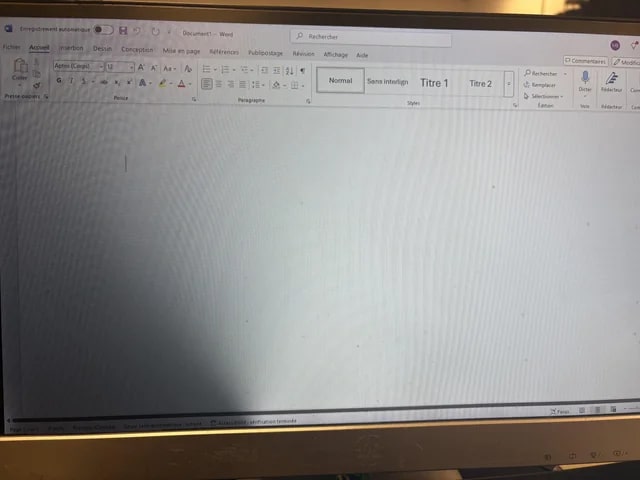
A monitor shadow refers to a faint duplicate or blurry outline that appears beside or behind text or images on your screen. It may look like a shadow, double vision, or ghosting effect. This happens when your display doesn’t refresh properly or has issues transmitting image data.
Common Signs of Screen Shadow:
- Blurry text or doubled edges
- Trails or ghost-like images following moving objects
- Uneven brightness or darker spots
- Colors appearing faded or off-tint
- Shadows that remain even after restarting your computer
If you see any of these symptoms, you might be dealing with screen shadowing or ghosting.
Causes of Shadow or Ghosting Effect:
1. Hardware Issues:
Old or failing display panels, especially LCD or LED monitors, may cause shadows due to uneven backlighting or damaged pixels.
2. Cable and Connection Problems:
Loose or faulty HDMI, VGA, or DisplayPort cables can cause distorted signals leading to shadows or blur. Damaged cable pins are often the culprit.
3. Display Settings:
Incorrect refresh rates, contrast, or sharpness settings can make images appear doubled or ghosted. This is common when using high-resolution displays with outdated drivers.
4. Software or Driver Glitches:
Outdated or incompatible graphics drivers often cause rendering delays, resulting in ghosting or shadows, particularly after Windows updates.
5. External Lighting and Environment:
Strong background lights or reflections can make your screen look shadowy. The shadow may not actually exist in the display itself, but rather in your environment.
How to Identify the Source of the Shadow:
1. Using Built-in Display Tools:
Use your monitor’s on-screen display (OSD) menu to test the brightness, contrast, and sharpness settings. Many monitors have built-in diagnostics that show whether the issue is internal.
2. Testing with Different Devices:
Connect your monitor to another computer or laptop. If the shadow persists, it’s likely a monitor issue. If it disappears, your graphics card or cables might be to blame.
3. Checking Cable and Port Integrity:
Try a new cable and a different port. Even small cable bends can disrupt signal quality and create ghosting.
How to Fix Shadow on Computer Monitor:
1. Adjusting Display Refresh Rate:
Go to Settings → System → Display → Advanced Display Settings.
Set your refresh rate to the highest supported value (e.g., 120Hz or 144Hz).
A higher refresh rate ensures smoother transitions and eliminates ghost images.
2. Updating Graphics Drivers:
Outdated GPU drivers are a major cause of screen shadow.
- Press Windows + X → Device Manager → Display adapters.
- Right-click your GPU → Update driver.
You can also download the latest version from your GPU manufacturer’s website (NVIDIA, AMD, Intel).
3. Resetting Display Settings:
Sometimes, customized settings like digital vibrance or sharpness cause artifacts. Reset your display to default factory settings to remove these distortions.
4. Replacing Faulty Cables:
Swap out HDMI or DisplayPort cables with new ones. Always use high-quality, shielded cables to prevent signal loss.
5. Using the Monitor’s Factory Reset Option:
Most monitors include a Factory Reset in their OSD menu. This clears all custom settings and often resolves image shadows instantly.
How to Fix Screen Ghosting on Windows 11:
1. Enable Overdrive or Response Time Setting:
Check your monitor’s menu for “Overdrive,” “Response Time,” or “Trace Free.”
Enable it to improve pixel response time and reduce trailing effects.
2. Turn Off Motion Blur Reduction:
While motion blur reduction can enhance visuals, it sometimes creates flickering shadows. Turn it off and see if the issue clears.
3. Disable Variable Refresh Rate:
If you’re using a gaming setup with FreeSync or G-Sync, try disabling it temporarily to check if the synchronization is causing ghosting.
How to Remove Screen Shadow Effect:
1. Adjust Brightness and Contrast:
Too much contrast or brightness can exaggerate shadows. Adjust both to medium levels and check for improvements.
2. Check for Image Persistence (Burn-in):
Leave a white or moving image on the screen for 30 minutes. This helps refresh pixels and may remove mild burn-in shadows.
3. Use a Screen Refresh or Pixel Cleaner Tool:
Online pixel fixers or manufacturer-provided tools can “exercise” your pixels by flashing colors, removing ghost images effectively.
Why Is My Screen Hazy or Dim?
A hazy screen often means your monitor’s backlight is failing or your display cable is loose. Adjust your monitor’s color calibration and check power settings under Windows → Power & Battery → Display Brightness.
Dark Area on Monitor—What Does It Mean?
If you see a permanent dark spot, it might be due to:
- Dead pixels
- Uneven backlighting
- Pressure damage
- Dust or moisture inside the panel
Unfortunately, physical damage can’t be fixed through software—you may need professional repair or replacement.
Shadow Due to External Factors:
1. Reflections and Lighting Issues:
If a lamp or window is behind you, it can reflect on your monitor, creating a shadow-like illusion. Adjust your setup or use a matte screen protector to reduce glare.
2. Magnetic Interference:
Nearby electronic devices or speakers can cause distortions on older monitors. Move them away and perform a degauss (for CRTs) if applicable.
Preventing Shadows in the Future:
- Keep your monitor away from magnets or strong electronic fields
- Always use certified display cables
- Update your GPU drivers regularly
- Avoid static images for long periods
- Use power-saving modes to protect your panel
Best Practices for Monitor Maintenance:
- Clean your screen weekly using microfiber cloths
- Keep brightness at moderate levels
- Use a surge protector to prevent power-related damage
- Turn off your monitor when not in use
- Perform periodic factory resets
When to Replace Your Monitor:
If you’ve tried all fixes and the shadow remains, your monitor might have panel degradation. When the cost of repair exceeds half the price of a new model, replacement is the smarter option. Modern monitors come with faster refresh rates and better image clarity, making the upgrade worth it.
How to fix the shadow on the laptop screen:
To fix a shadow on your laptop screen, start by restarting your laptop and updating the graphics drivers. Check the display cable connection (if it’s an external monitor) and adjust the brightness or contrast settings. If the shadow persists, try connecting to another screen — if it disappears, your laptop’s display panel may need repair or replacement.
How to fix the shadow on the computer monitor:
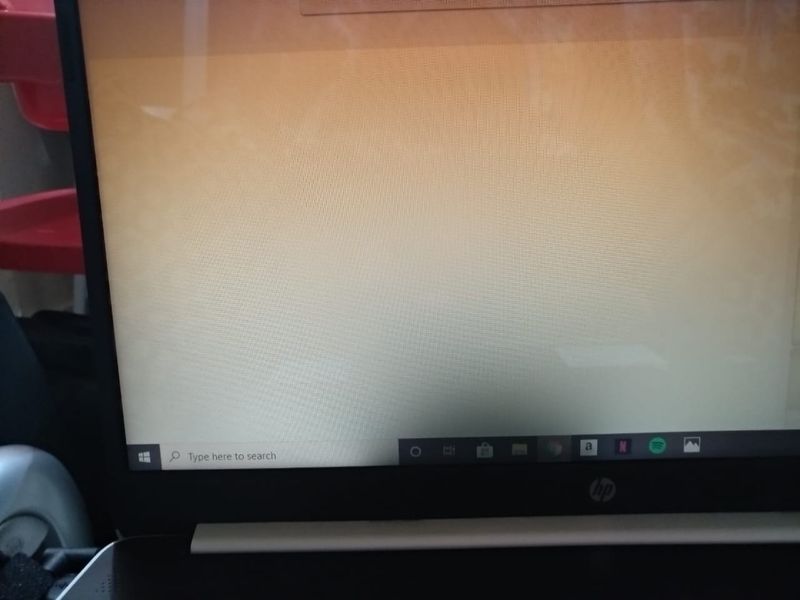
To fix the shadow on your computer monitor, start by checking and tightening all display cable connections. Update your graphics driver and adjust the refresh rate or resolution settings. If the issue persists, try a different cable or monitor to rule out hardware faults.
Shadow on the computer monitor Windows 11:
When I saw a shadow on my monitor in Windows 11, it turned out to be a display driver issue. I fixed it by updating my graphics driver, adjusting the refresh rate, and resetting my display settings. After a quick restart, the shadow effect completely disappeared, and the screen looked clear again.
Frequently Asked Questions:
1. How to fix the shadow on the monitor?
You can fix a shadow on your monitor by checking the display cable connection, updating your graphics drivers, and adjusting the screen’s refresh rate. If the problem remains, try using a different cable or monitor to rule out hardware issues.
2. Why does my screen look like it has a shadow?
A shadow effect on your screen usually happens due to ghosting, magnetic interference, or an aging display panel. Faulty cables or outdated drivers can also cause the shadow to appear.
3. How to remove the shadow from the computer screen?
To remove screen shadows, reconnect your display cables, clean the screen, and reset your monitor’s settings. You can also update your GPU drivers or perform a factory reset on the monitor.
4. How to fix screen ghosting on a monitor?
Fix screen ghosting by enabling overdrive (OD) in your monitor settings and setting the refresh rate to the highest supported level. Also, avoid using low-quality cables or outdated display drivers.
5. How to remove screen shadow?
You can remove screen shadows by adjusting brightness and contrast, using a different HDMI or DisplayPort cable, and making sure no strong magnets or devices are close to your screen.
6. Why is my monitor screen hazy?
A hazy screen often results from dirty surfaces, low brightness, or incorrect color calibration. Cleaning the monitor and adjusting display settings usually restores clarity.
7. How to remove the shadow effect?
Disable any shadow or drop-shadow settings in your display or graphics control panel. Also, check that your monitor is properly aligned and that there’s no interference from nearby electronics.
8. What does screen shadow mean?
A screen shadow means a faint or dark ghost-like image lingers behind moving objects or text on the screen, usually caused by ghosting or a slow pixel response time.
9. Why is there a dark area on my monitor?
A dark area may appear due to backlight bleeding, dead pixels, or uneven brightness. Gently massaging the spot or adjusting brightness may help, but if not, the display may need repair.
10. How do I get my computer screen back to normal?
To restore your screen, check cable connections, update graphics drivers, and reset display settings to default. Restarting your computer and monitor often resolves most display issues.
Conclusion:
A shadow on your computer monitor can be annoying, but it’s usually not a serious problem. Most of the time, it can be fixed by simply adjusting display settings, updating graphics drivers, or replacing faulty cables. Regular maintenance—like cleaning your screen, avoiding static images, and keeping cables secure—helps prevent future issues. If the shadow persists even after trying all fixes, the display panel itself may be failing and require replacement. By following the troubleshooting steps in this guide, you can easily restore your monitor’s clarity and enjoy a clean, shadow-free viewing experience.
About the Author