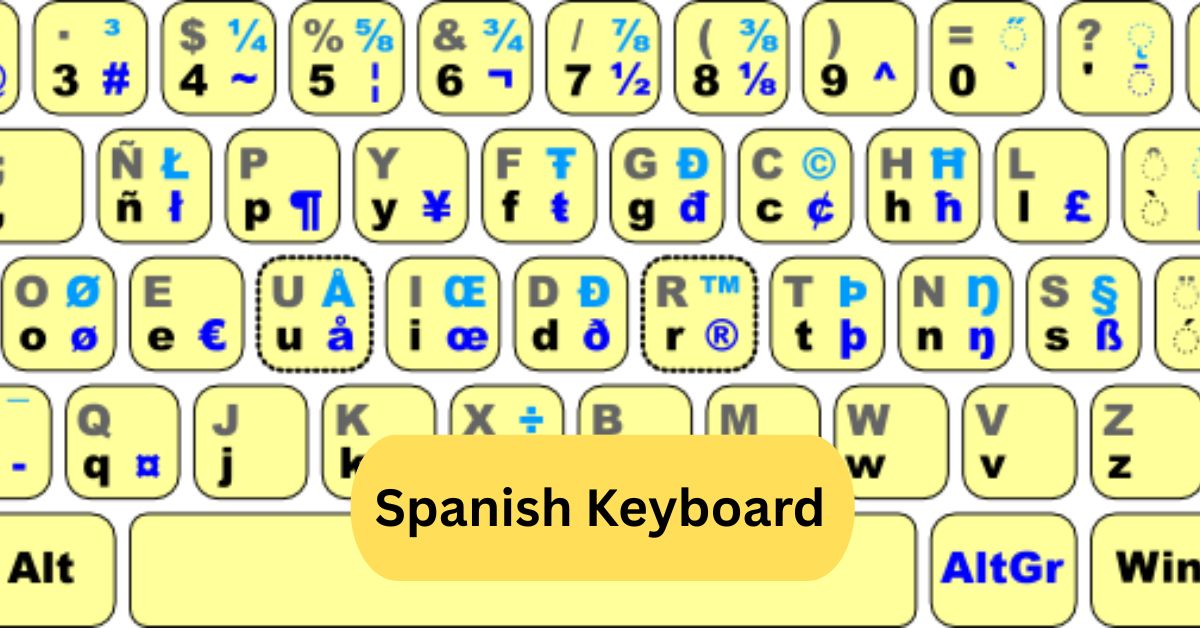
Using a Spanish keyboard for the first time, I noticed it made typing in Spanish much smoother. The ñ key and accented vowels were easily accessible, saving me time and avoiding mistakes when writing messages or documents in Spanish.
A Spanish keyboard is designed for typing in Spanish, featuring special keys like ñ, accented vowels (á, é, í, ó, ú), and punctuation marks used in Spanish. It helps write accurately and efficiently in the language.
In this article we discuss about “Spanish Keyboard”
Table of Contents
Introduction:
Are you struggling with typing in Spanish on your computer or phone? Or perhaps you just want to improve your Spanish writing skills? A Spanish keyboard can be your ultimate tool. With the right layout and shortcuts, typing special characters, accents, and the famous “ñ” becomes effortless. In this guide, we’ll cover everything you need to know about Spanish keyboards—from their layout to practical tips for smooth typing.
What is a Spanish Keyboard?
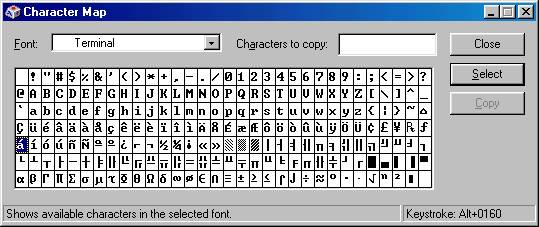
A Spanish keyboard is a type of keyboard designed specifically to accommodate the Spanish language. It includes keys for letters like ñ and accented vowels (á, é, í, ó, ú), which are essential in Spanish writing. Unlike a standard English keyboard, a Spanish keyboard ensures that users can type fluently without relying on complicated key combinations.
History of the Spanish Keyboard:
The Spanish keyboard has evolved over the decades. Initially derived from typewriter layouts in Spain, it was adapted for computers to support Spanish grammar and orthography. Over time, it became standardized across different operating systems, ensuring consistency in typing and document creation.
Difference Between Spanish and English Keyboards:
You may wonder why you don’t just use an English keyboard. The key differences include:
- Extra letters: Spanish keyboards include ñ.
- Accents: Spanish keyboards allow easy typing of accented vowels.
- Special symbols: Some punctuation and currency symbols are repositioned for convenience.
Types of Spanish Keyboards:
1. Spanish (Spain) Layout:
Primarily used in Spain, this layout includes ñ and the Ç key. Punctuation marks like “¡” and “¿” have their own dedicated keys.
2. Latin American Layout:
Popular in countries like Mexico and Argentina, this layout is slightly different from Spain’s, with variations in punctuation keys and the placement of the @ symbol. Both layouts support typing Spanish accents efficiently.
Spanish Keyboard Layout Overview:
1. Letters:
All the standard A-Z letters are present, but the ñ is a standout addition.
2. Numbers:
Numbers are typically the same as English keyboards, but accessing some symbols may require using the Shift key.
3. Special Characters:
Keys for ¡, ¿, €, @, # and other symbols are easier to access compared to English keyboards.
How to Type Spanish Accents:
Typing accents on vowels is straightforward:
- On Windows, use Alt codes or the Spanish layout.
- On Mac, hold the vowel key until accent options appear.
Example: Press á by holding a and selecting the accent.
Typing the Ñ on a Spanish Keyboard:
The ñ is unique to Spanish. On a Spanish keyboard, it has its dedicated key, usually next to the L key. On English keyboards, you can type it using Alt + 164 on Windows or Option + n, then n on Mac.
Typing Other Special Characters:
Spanish keyboards make typing ¡, ¿, €, and accented vowels simple.
- Inverted exclamation (¡): Press Shift + ! on the Spanish layout.
- Inverted question mark (¿): Press Shift + ?.
- Euro (€): Press Alt Gr + E.
Using Shortcuts for Spanish Characters:
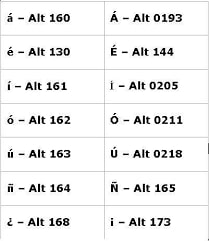
Keyboard shortcuts can speed up typing significantly:
- á, é, í, ó, ú: Use accent key + vowel.
- ñ: Alt + 164 (Windows), Option + n (Mac).
- ¡, ¿: Use dedicated keys on Spanish layouts.
Switching Your Keyboard to Spanish:
1. Windows:
- Go to Settings > Time & Language > Language.
- Add Spanish as a language.
- Select the Spanish keyboard layout.
2. Mac:
- Open System Preferences > Keyboard > Input Sources.
- Click + and choose Spanish.
- Enable the input menu in the menu bar for quick switching.
3. Mobile Devices:
- On iOS or Android, go to Settings > Keyboard > Add New Keyboard and select Spanish.
Benefits of Using a Spanish Keyboard:
- Ease of typing accents and ñ.
- Reduced errors in Spanish writing.
- Faster typing for native speakers or learners.
- Convenient access to Spanish punctuation and symbols.
Common Mistakes with Spanish Keyboards:
- Confusing ñ with n.
- Forgetting to use accents on vowels.
- Using English keyboard shortcuts instead of Spanish layout shortcuts.
- Misplacing punctuation like ¿ or ¡.
Spanish Keyboard for Gaming and Typing:
Gamers and typists can also benefit:
- Custom key mapping allows switching between Spanish and English layouts.
- Typing speed improves once shortcuts and special characters become muscle memory.
- Multilingual gaming chats are easier with native Spanish input.
Where to Buy or Download a Spanish Keyboard:
- Physical keyboards: Available on Amazon, local electronics stores, and computer shops.
- Virtual keyboards: Download Spanish keyboard apps for Windows, Mac, iOS, and Android.
- Browser extensions: Some allow you to type in Spanish online without switching layouts.
Spanish keyboard layout:
A Spanish keyboard layout is designed for typing in Spanish, including special characters like ñ, accents (á, é, í, ó, ú), and punctuation marks (¡, ¿). It differs slightly from the standard QWERTY keyboard, with some keys reassigned for these characters. This layout makes writing in Spanish faster and more convenient.
Spanish keyboard Windows:
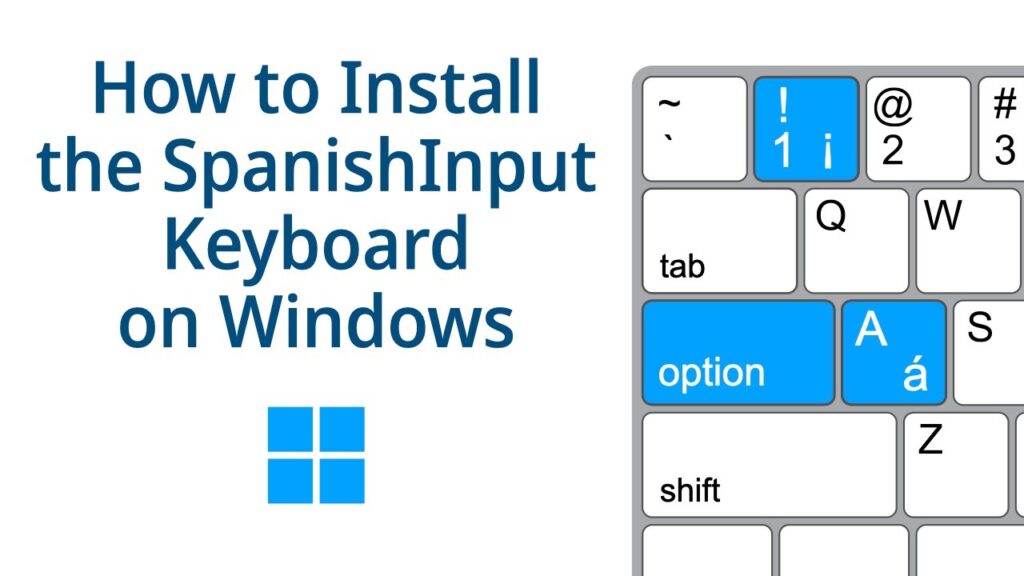
On Windows, you can switch to a Spanish keyboard layout through the Language settings. This layout allows you to type special Spanish characters like ñ, accented vowels (á, é, í, ó, ú), and symbols such as ¡ and ¿. It can be selected temporarily using a keyboard shortcut or set as the default input method.
Spanish keyboard download:
You can download a Spanish keyboard layout for Windows or Mac from the official language settings or trusted websites. Once installed, it enables typing special characters like ñ, accented vowels, and Spanish punctuation marks. Many virtual keyboard apps for phones also allow downloading and using a Spanish layout easily.
Frequently Asked Questions:
1. How do I type Spanish accents on my keyboard?
Hold the Alt key and type the numeric code for the accented letter, or use the keyboard shortcut like ´ + vowel. On some keyboards, pressing Option or AltGr with the vowel works
2. How do I type a Spanish ñ?
Press Alt + 164 on Windows, Option + n then n on Mac, or switch to a Spanish keyboard layout for direct access.
3. How to do the symbol on a Spanish keyboard?
Most special symbols like ¡ or ¿ are accessed using Shift with the number keys or via the AltGr key.
4. How do I turn my keyboard into Spanish?
Go to your device’s language settings, add Spanish as an input language, and select it as your keyboard layout.
5. What is the shortcut key for Ñ?
On Windows, use Alt + 164 (ñ) or Alt + 165 (Ñ). On Mac, use Option + n then n (for lowercase) or Shift + n for uppercase.
6. How to type language accents on the keyboard?
Use Alt codes on Windows, Option key combinations on Mac, or enable your device’s language/keyboard settings for easy access.
7. How do I type é?
Press Alt + 0233 on Windows, or Option + e then e on Mac. On mobile, hold the e key and select é.
8. How to write a character with a Spanish accent?
Use accent shortcuts like ´ + letter, Alt codes, or switch to a Spanish keyboard layout for direct typing.
9. How do I use a Spanish keyboard on my phone?
Install a Spanish keyboard from your phone settings or app store, then switch keyboards while typing. Long-press letters for accents.
10. Why is the letter “h” silent in Spanish?
In Spanish, h is always silent because historically it marked a sound that disappeared over time; it affects spelling but not pronunciation.
Conclusion:
A Spanish keyboard is an essential tool for anyone typing in Spanish, making accents, the ñ, and special punctuation easily accessible. Whether you are a student, professional, or casual user, it enhances typing speed, accuracy, and convenience. Switching between English and Spanish layouts is simple on computers and mobile devices, while shortcuts further improve efficiency. With options for physical or virtual keyboards, anyone can start typing in Spanish effortlessly. Adopting a Spanish keyboard not only saves time but also ensures your writing is accurate and professional.
About the Author